
Just Volleyball Settings: Bindings and Comfort
The just volleyball settings that matter: per-profile keybinds, camera and zoom, audio, difficulty, accessibility options, replays, and cloud saves.
Just volleyball keeps its settings simple, but a few of them change how the game feels more than any graphics option. The most important is the per-profile keybind menu, because the default layout is not comfortable for everyone and the game is built around two-handed control.
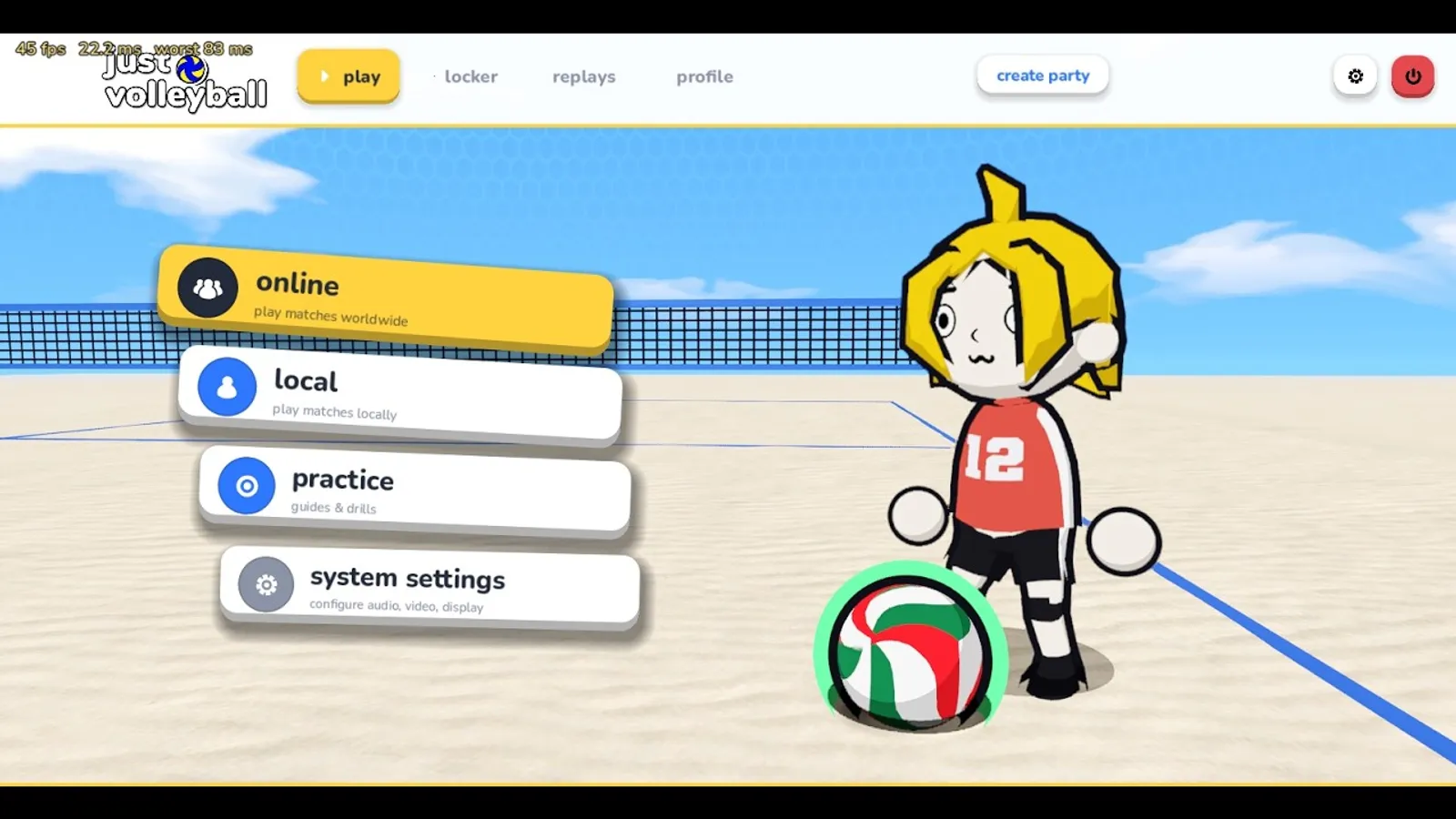
Zoom, mouse sensitivity, and the set key. Those three settings affect every contact; the graphics options can wait.
Per-profile bindings
Bindings are stored per player profile, not in one global options file. That matters on a shared PC: each player can keep their own layout without overwriting anyone else's.
The default scheme uses:
- WASD for movement
- Mouse for aiming
- Left click for bump and spike
- Right click for dive and block
- E for set
- Space for jump
- Shift for strafe
- C for camera
- V or the mouse wheel for zoom
- 1-4 for quick chat
If a key feels awkward, rebind it. The set key is the most common change: some players prefer a mouse side button, others prefer a keyboard key closer to WASD. There is no competitive reason to keep the default.
Mouse sensitivity and cursor feel
The cursor is the aiming device, so sensitivity is a gameplay setting, not a comfort setting. A sensitivity that is too high makes the cursor overshoot the ball; too low makes it impossible to reach a corner in time.
Start with the default and change one increment at a time. Test in a bot match, not in the menu. If you find yourself correcting the cursor after every movement, lower the sensitivity. If you cannot reach the back corners, raise it.
The game does not publish a recommended sensitivity, and it should not: it depends on your mouse DPI, your desk space, and your grip. The right value is the one that lets you put the cursor on a target without thinking.
Camera and zoom
C is the camera switch, and V or the mouse wheel zooms. The camera options are the second most important settings in the game.
- Zoom out for 5v5 and 6v6. A full court needs a wide view, and the cursor is easier to place when you can see the whole net.
- Zoom in for 1v1. The court is empty; the ball is the only thing that matters.
- Use the camera switch if the default angle hides the near sideline. A different angle can make the depth of the court easier to read.
If you feel motion sickness, look for the camera comfort options. The store lists "Camera Comfort" as a feature, which usually means options to reduce shake, motion blur, or field-of-view changes.
Audio
The store lists custom volume controls, stereo sound, and surround sound. A few practical settings:
- Lower the crowd and music, raise the ball and contact sounds. The audio cue for a clean contact is useful; the crowd is atmosphere.
- Keep voice chat separate if the game offers it. You want to hear your teammates without blowing out the game audio.
- Test the serve sound. A consistent audio cue helps with the toss timing.
The game supports surround sound, but stereo is enough for most players. A good headset with clear mids is more useful than a 7.1 setup for this kind of game.
Difficulty and accessibility
The store lists Adjustable Difficulty and Playable without Timed Input. Those are meaningful options for a game built on timing:
- Adjustable difficulty likely affects bot strength and possibly the timing windows. If you are new, start lower and raise it when the game feels slow.
- Playable without timed input suggests an option for players who cannot respond to fast timing checks. The exact implementation is not public; check the accessibility menu at launch.
- Camera comfort covers motion sensitivity.
- Custom volume controls cover audio mixing.
Those four features put the game above the average arcade sports title for accessibility. They do not make it a turn-based game, but they lower the barrier.
Replays and cloud saves
The developer's feature list mentions replay mode and cloud save support. Steam Cloud is listed on the store page.
- Replays are useful for reviewing your own positioning. Watch a lost rally and ask where you were standing, not what you clicked.
- Cloud saves mean your progress follows your Steam account. If you play on a desktop and a Steam Deck, the save should be there on both.
- Replay files can grow. The developer's note says replays increase the install size, so clean them out periodically.
Replay settings may include a toggle for recording. If you are on a low-end machine, turning replays off can recover a little performance.
Graphics settings
The store does not publish a graphics menu, but the usual options apply: resolution, shadows, effects, and anti-aliasing. The game's art style is not dependent on high-end effects, so lower the resolution before you lower everything else. A clean 1080p image is better than a blurry 1440p one.
If you are on a laptop, check the power profile first. A balanced profile can halve the frame rate on integrated graphics. Plug in the laptop and set the profile to performance before you blame the game.
Settings for a shared PC
A shared PC is where per-profile bindings earn their keep. Set up a profile for each player before a couch session:
- Create a profile and name it.
- Set the bindings and sensitivity.
- Set the zoom and camera preference.
- Save and repeat for the next player.
Do not rely on a single profile with "good enough" settings for everyone. A player who is uncomfortable with the controls will blame the game, not the layout.
Settings that do not matter much
- Resolution scaling above 100%. The art is clean; supersampling is a waste on this game.
- Motion blur. It usually makes a fast ball harder to track.
- Cinematic camera options. They look nice in a trailer and hurt in a rally.
- High shadow settings. The court is bright; shadows are atmosphere, not information.
Spend your tuning time on the cursor, not the post-processing.
A five-minute setup routine
Before your first match:
- Set zoom so you can see the whole court.
- Lower sensitivity until the cursor stops overshooting.
- Rebind the set key if E is awkward.
- Lower music and raise contact sounds.
- Set difficulty to a level where bots are hittable but not passive.
- Turn on camera comfort if you feel any motion discomfort.
That is enough. The controls guide explains what each binding does, and the system requirements page tells you whether your PC needs a graphics tweak.
FAQ
Are keybinds per player?
Yes. Bindings are stored per profile, so a shared PC can have multiple layouts.
Can I change mouse sensitivity?
Yes. It is the most important setting for cursor control.
Does the game have accessibility options?
The store lists camera comfort, adjustable difficulty, and playable without timed input.
Is there cloud save?
Steam Cloud and cloud save support are listed.
Further reading
Official source: just volleyball on Steam for the feature and accessibility list, and Steam Cloud for how cloud saves work.
More just volleyball Guides
Fast answers on the just volleyball release date, price, demo, crossplay, gamepad support, LAN, split-screen, system requirements, and launch status.
Every just volleyball team size explained, from the 1v1 duel to the full 6v6 court, with the best mode for beginners and the settings that change a lobby.
A plain-language just volleyball tutorial: the rally flow, the three-touch pattern, each position, and the fastest way to survive your first online match.
A step-by-step guide to playing just volleyball with friends online, on LAN, in split-screen, or via Steam Remote Play, plus fixes for common lobby problems.
How just volleyball multiplayer works across online play, LAN, split-screen, and co-op, including the server browser, lobby sizes, ping, and moderation.
The free public playtest opened on September 23, 2026 on a separate Steam app. Here is how it differed from the demo and whether it is still running.
The developer quoted a $7.99 base price for just volleyball with a 38% launch discount. Here is what is confirmed, what is not, and how regional pricing works.
The defensive half of just volleyball: how to receive a serve, set a hittable ball, position behind the block, and cover the court without wasting stamina.