
Just Volleyball How to Play With Friends
A step-by-step guide to playing just volleyball with friends online, on LAN, in split-screen, or via Steam Remote Play, plus fixes for common lobby problems.
There are four ways to get a friend into a just volleyball match: an online lobby, a LAN session, split-screen on one PC, or Steam Remote Play Together. The first is the default, the second is the best, the third is the cheapest, and the fourth is the fallback when someone does not own the game.
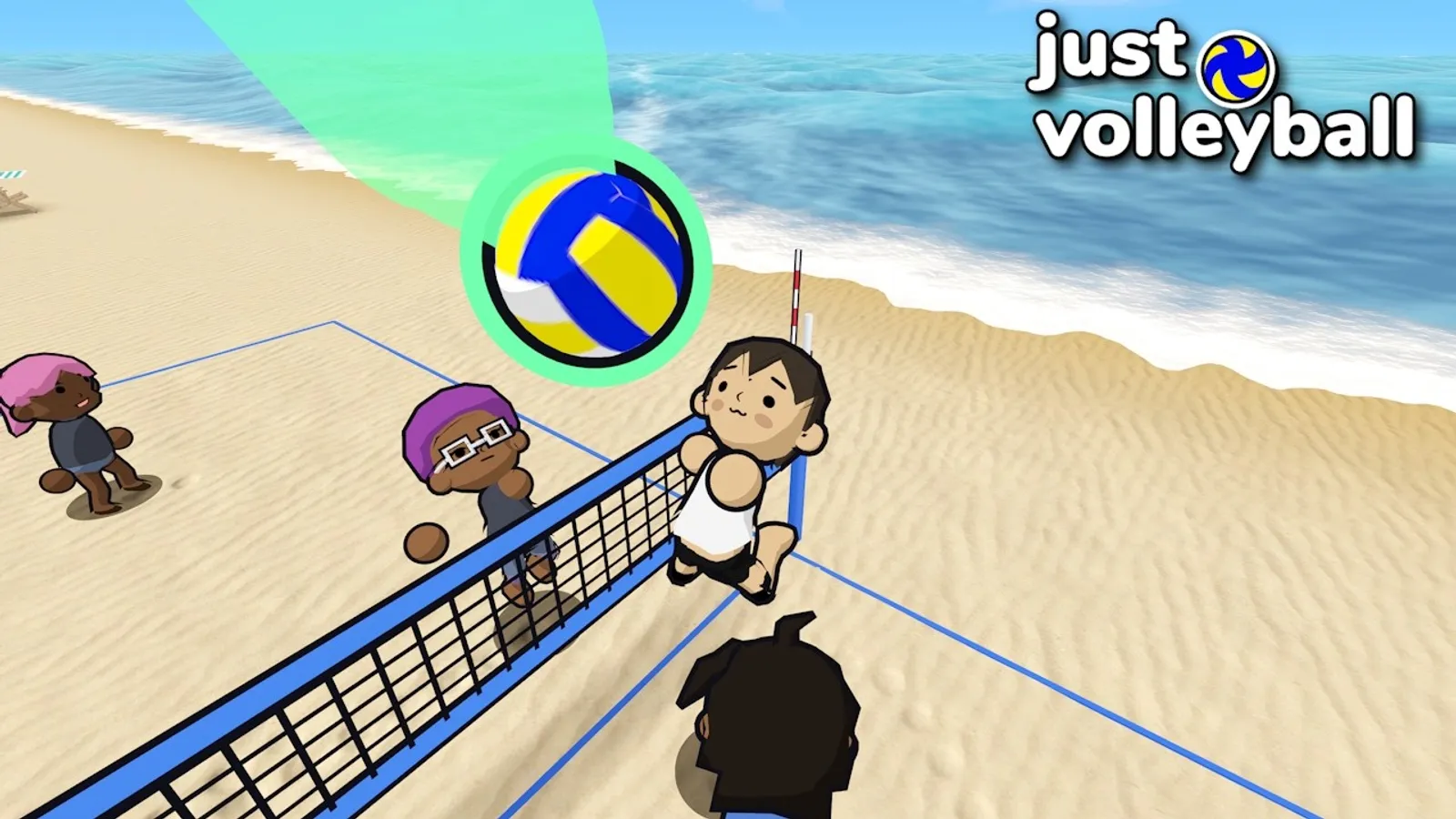
Decide the team size first. A 6v6 lobby with two friends and four bots is a different experience from a 2v2, and the lobby settings are easier to set before people join.
Option 1: an online lobby
This is the standard route and the one most groups will use.
- Both players install the game. The full game is a paid Steam app; the demo is gone.
- Add each other on Steam. The friends list is the simplest invite path.
- One player creates a lobby. Choose the team size, court, and whether bots fill empty slots.
- Set the lobby to friends-only or public. Friends-only avoids random joins; public fills faster.
- Invite through Steam. The friend accepts the invite and joins the lobby.
- Start the match. If the lobby has empty slots, add bots or wait for public players.
If the invite does not arrive, the friend can open the server browser and search for the lobby name. That is also the workaround when Steam's invite system is slow.
For a group larger than two, the host should create the lobby first and then invite everyone. Changing the team size after players join can reset the lobby, so set it up front.
Option 2: LAN
LAN is the best option if you are in the same room and want the cleanest matches. Every player needs the game installed on their own PC.
- Connect every PC to the same router. Wired Ethernet is strongly preferred.
- Allow the game through the firewall. On Windows, allow it on private networks.
- One player hosts a LAN lobby. The host's PC becomes the server.
- The others join through the LAN tab or local server list.
- Set the team size and start.
If nobody can see the lobby, check the host's firewall first, then the network profile. A Windows network set to "Public" blocks discovery by default. Change it to "Private" for the session.
LAN does not need internet for the match itself, but Steam may still require an online check when the game launches. Do a dry run before a tournament.
Option 3: split-screen
Split-screen is for one PC and multiple people in the same room. The demo's setup screen showed four player slots, which is enough for 2v2.
- Connect the controllers or plan the keyboard layout. The game is keyboard-and-mouse first; a shared keyboard is possible but cramped.
- Open the local play menu.
- Assign each player a profile. Bindings are per profile, so each player can use their own keys.
- Choose the team size and start.
A shared screen changes how much information each player has. Zoom out if the option is available, and agree on a simple rule for who takes the middle ball. The most common couch argument is two players watching the same ball land between them.
Option 4: Remote Play Together
If a friend does not own the game, Steam Remote Play Together can stream a local session to them. The host runs the match; the guest sends inputs over the internet.
- Start a local lobby on the host PC.
- Open the Steam overlay and invite the friend to Remote Play.
- The friend accepts and joins as a local player.
- Set the controller/keyboard assignment.
The quality depends on both connections. A wired host and a wired guest are ideal; two Wi-Fi connections will produce input lag. Remote Play is great for co-op and casual 1v1, less great for competitive 6v6.
Which option should you pick?
| Situation | Best option | Why |
|---|---|---|
| Friends own the game, different cities | Online lobby | Native, low setup |
| Friends in the same room with PCs | LAN | Lowest latency |
| One PC, two to four people | Split-screen | No second copy needed |
| Friend does not own the game | Remote Play Together | Guest streaming |
| Mixed group, some own it | Online lobby plus Remote Play | Combine as needed |
Troubleshooting the common failures
The lobby is not visible. Check the privacy setting, then the region, then the game version. A friend on a different patch cannot join.
The invite does not work. Send the lobby name instead. Steam invites can lag behind the actual lobby state.
The ping is bad. Sort the browser by ping and switch regions. If you are the host, your connection is the ceiling for everyone.
The friend cannot join a LAN game. Firewall, network profile, or a different subnet. Allow the game on private networks and confirm both PCs are on the same router.
The split-screen layout is confusing. Assign profiles before the match and agree on a court-side convention. "I take left, you take right" is enough.
Remote Play is laggy. Switch both sides to Ethernet, close background downloads, and lower the stream resolution if Steam offers the option.
A good first session plan
Do not start with 6v6. A first session with friends should be:
- Ten minutes of 1v1 or 2v2. Everyone learns the cursor and the serve.
- Twenty minutes of 2v2 or 3v3. The pass-set-hit pattern appears.
- A 4v4 or 6v6 match once people can pass. The full court is more fun when nobody is chasing the ball into a teammate.
If you have mixed skill levels, put the strongest player at setter. A good setter makes everyone else look better, and the weaker players get clean attacks instead of desperation swings.
The beginner guide has a seven-day plan you can run as a group, and the game modes guide explains why 2v2 is the best classroom.
Etiquette for a small lobby
A small game lives on its regulars. A few habits keep a lobby healthy:
- Do not stack the teams. If one side is clearly stronger, swap a player.
- Call the ball. "Mine" prevents collisions and arguments.
- Mute, do not argue. The game has a mute function for a reason.
- Finish the match. Leaving mid-rally ruins the session for everyone.
- Invite the beginner. A lobby that only wants experienced players dies when the experienced players leave.
What if my friend is on console?
There is no console version, so console crossplay is not possible. A console player can join a streamed Remote Play session only if they can run Steam and the stream on a PC; a PlayStation or Xbox cannot join natively. The crossplay guide explains the platform limits.
FAQ
Can I play just volleyball with friends online?
Yes. Create a lobby and invite through Steam, or share the lobby name for the server browser.
Do my friends need to own the game?
For online and LAN, yes. For split-screen, no. For Remote Play Together, the guest does not need a copy.
Can we play 2v2 with bots?
Yes. Bots can fill empty slots, which is useful for a two-player session.
Why can't my friend see my lobby?
Check the privacy setting, the region, the game version, and the host's firewall.
Further reading
Official source: just volleyball on Steam for the multiplayer categories and Steam Remote Play for guest invitations.
More just volleyball Guides
The free Next Fest demo ran from October 19 to October 29 and is now delisted. Here is what it contained, what carries over, and how to practise without it.
The official just volleyball Discord invite, what the temkosoft server is for, how to find matches, report bugs, and avoid fake keys and scam links.
Fast answers on the just volleyball release date, price, demo, crossplay, gamepad support, LAN, split-screen, system requirements, and launch status.
How just volleyball multiplayer works across online play, LAN, split-screen, and co-op, including the server browser, lobby sizes, ping, and moderation.
The free public playtest opened on September 23, 2026 on a separate Steam app. Here is how it differed from the demo and whether it is still running.
The developer quoted a $7.99 base price for just volleyball with a 38% launch discount. Here is what is confirmed, what is not, and how regional pricing works.
The defensive half of just volleyball: how to receive a serve, set a hittable ball, position behind the block, and cover the court without wasting stamina.
Just volleyball still shows November 4 on Steam, but temkosoft says the launch will slip. Here is the current status and the realistic new window.